How to Migrate from Airtable to Monday.com in 2026
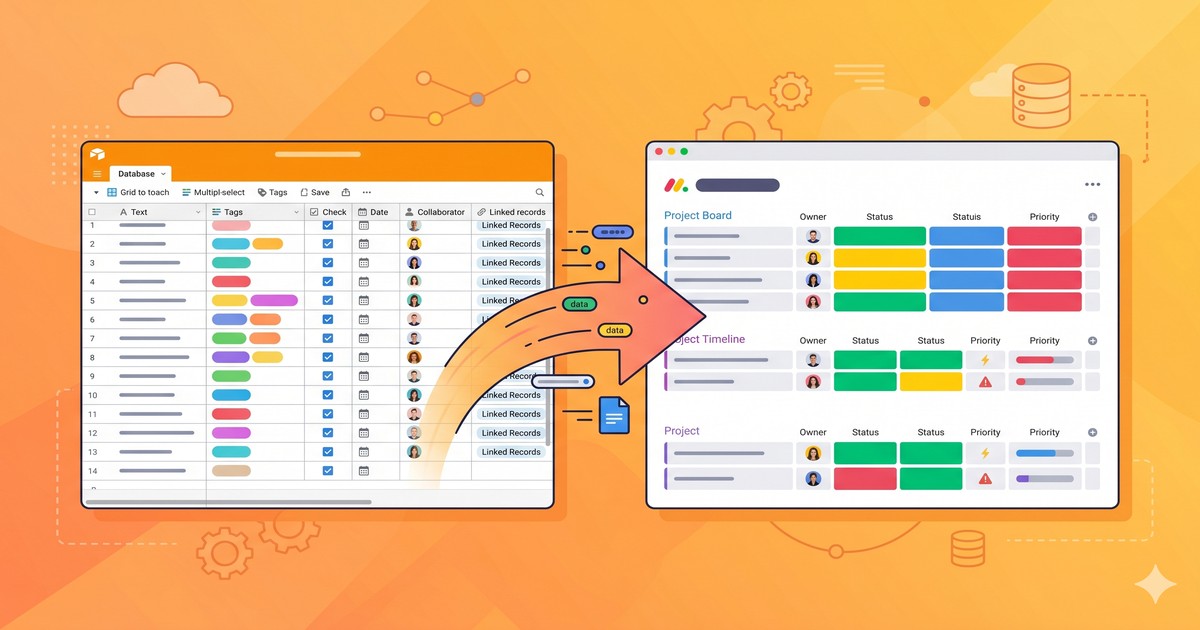
Migrating from Airtable to Monday.com takes some planning, but it is straightforward if you know what to export and what to rebuild. Here is a practical step-by-step guide to moving your data and workflows.
Why Teams Switch from Airtable to Monday.com
Before migrating, it is worth confirming Monday.com solves the problems you have with Airtable:
| Reason to Switch | What Monday.com Does Better |
|---|---|
| Airtable feels too database-heavy | Monday has a more visual, project-focused interface |
| Team adoption is low | Monday’s timeline and board views are more intuitive for non-technical users |
| Pricing is expensive per seat | Monday’s pricing is more predictable at scale |
| You need better Gantt/timeline views | Monday’s timeline view is more capable |
| Customer support is lacking | Monday has stronger enterprise support |
If your team uses Airtable mostly as a relational database with complex linked records and formulas, Monday.com may not be the right replacement — it handles project management better than structured data.
Step 1: Audit Your Airtable Setup Before Migrating
Before exporting anything, document what you have:
- List all bases: Which bases are actively used vs. abandoned?
- Identify linked records: These will not transfer automatically — you will need to recreate the relationships in Monday.com
- List automations: Document every automation so you can rebuild them in Monday.com
- Note formula fields: Monday.com has formulas but they use different syntax
- Check attachments: Large attachment libraries will need to be re-uploaded
Step 2: Export Your Airtable Data
Airtable lets you export tables as CSV files:
- Open your Airtable base
- Go to the table you want to export
- Click the Grid view dropdown → Download CSV
- Repeat for each table
Limitations of CSV export:
- Linked record fields export as text (not live links)
- Attachments are not included — only attachment URLs are exported
- Formulas export as computed values, not formulas
- Long text with formatting may lose some formatting
For a full data backup including attachments, use the Airtable API or a third-party tool like Coupler.io before migrating.
Step 3: Create Your Monday.com Structure
Monday.com organizes work differently than Airtable:
| Airtable | Monday.com Equivalent |
|---|---|
| Workspace | Account |
| Base | Board (or Workspace folder) |
| Table | Board |
| Record | Item |
| Field | Column |
| View | View (Kanban, Timeline, etc.) |
| Automation | Automation |
Set up your Monday.com boards before importing:
- Create a board for each Airtable table you are migrating
- Add columns that match your Airtable fields (text, number, date, status, person, etc.)
- Configure status labels to match your Airtable Select fields
Step 4: Import CSV into Monday.com
Monday.com has a built-in CSV importer:
- Create a new board or open an existing one
- Click the + to add a new board → Import data → Excel / CSV
- Upload your exported Airtable CSV
- Map your CSV columns to Monday.com column types
- Click Import
The importer handles most field types automatically. Review the mapping carefully for date formats and status fields.
Step 5: Rebuild Linked Records
This is the most time-consuming part of any Airtable migration. Monday.com handles cross-board connections through the Connect Boards column type.
For each linked record relationship in Airtable:
- Add a Connect Boards column to your Monday.com board
- Select the board you want to link to
- Manually re-link items that were previously connected
For large datasets, the Monday.com API can automate this process.
Step 6: Rebuild Automations
Airtable automations do not transfer to Monday.com. You need to recreate them manually.
Common Airtable automations and their Monday.com equivalents:
| Airtable Automation | Monday.com Automation |
|---|---|
| Notify when status changes | ”When status changes, notify someone” |
| Send email on record creation | ”When item created, send email” |
| Create record based on condition | ”When condition is met, create item” |
| Slack notification | ”When status changes, send Slack message” |
Monday.com’s automation builder is more visual and easier for non-technical users than Airtable’s.
Step 7: Migrate Attachments
CSV exports do not include attachment files — only URLs. To migrate attachments:
- Use the exported attachment URLs to download files locally
- Re-upload files to Monday.com’s file column manually or via API
- For large libraries, consider a tool like Zapier or Make to automate the re-upload process
What You Will Miss From Airtable
Be aware of what Monday.com does not replicate:
- Relational database power: Airtable’s linked records + rollups + lookups are more flexible
- Formula complexity: Airtable formulas are more SQL-like and powerful
- API access on free plan: Monday.com’s API requires a paid plan
- Custom views: Airtable’s gallery and form views work differently in Monday.com
Timeline for a Typical Migration
| Phase | Time |
|---|---|
| Audit and documentation | 1–2 days |
| CSV export and import | 1–2 hours |
| Rebuild linked records | 1–3 days (depends on complexity) |
| Rebuild automations | 2–4 hours |
| Team training | 1–2 days |
| Parallel running period | 1–2 weeks |
Plan for at least 2–3 weeks from start to fully switching over, especially if your team relies on automations.
→ Compare Airtable vs Monday.com side by side → See Airtable pricing before you cancel → Best Airtable Alternatives in 2026