Airtable Slack Integration 2026: How to Set It Up and What You Can Do
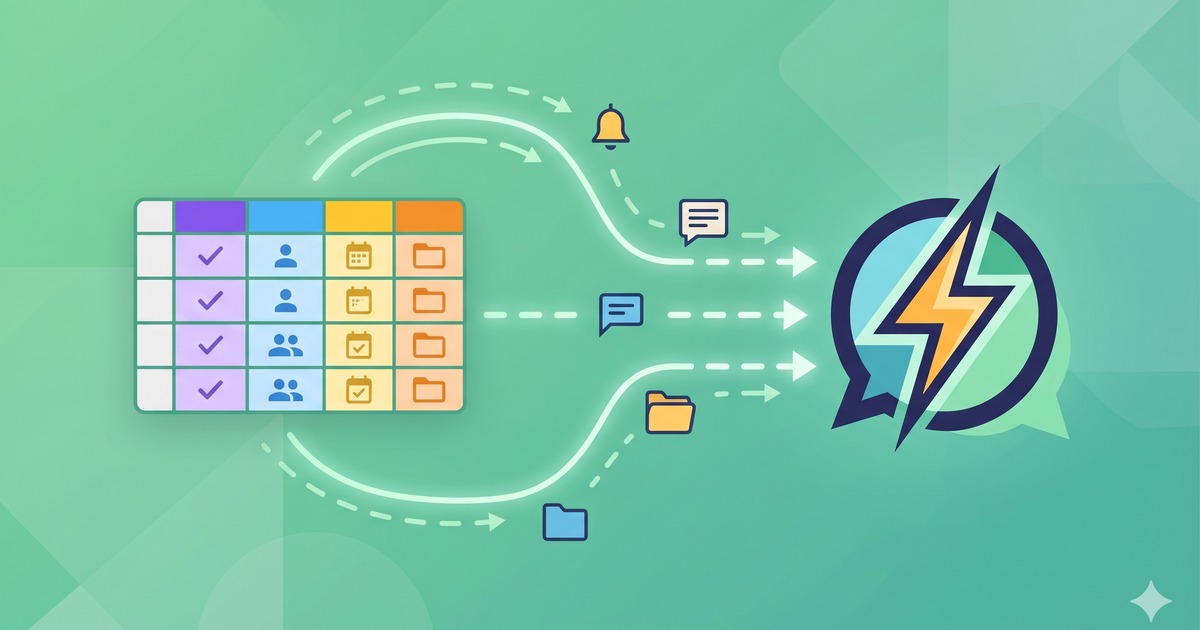
Connecting Airtable and Slack lets your team get notified about record changes, status updates, and new submissions without leaving Slack. Here is how the integration works in 2026 and what you can build with it.
What the Airtable-Slack Integration Does
The native Airtable-Slack integration works through Airtable Automations. You can:
- Send a Slack message when a record is created, updated, or matches a condition
- Post to a channel with formatted record details
- Send a direct message to a specific user
- Create Airtable records from a Slack slash command (via third-party tools)
This covers the most common use case: keeping your team informed in Slack when something changes in Airtable.
How to Set Up the Airtable-Slack Integration
Step 1: Open Automations in Your Base
Go to your Airtable base and click Automations in the top toolbar.
Step 2: Create a New Automation
Click + New automation. You will be prompted to choose a trigger.
Step 3: Choose Your Trigger
Common triggers for Slack notifications:
| Trigger | Use Case |
|---|---|
| When a record is created | Notify team of new form submissions |
| When a record matches conditions | Alert when status changes to “Needs Review” |
| When a record is updated | Ping assignee when a task is reassigned |
| At a scheduled time | Daily summary of open tasks |
Step 4: Add a “Send a Slack message” Action
After configuring your trigger, click + Add action and select Send a Slack message.
You will be prompted to connect your Slack workspace. Click Connect and authorize Airtable to access your Slack.
Step 5: Configure the Message
Choose:
- Channel: Post to a public or private channel
- Direct message: Send to a specific user
- Message content: Use dynamic fields from your Airtable record
Example message template:
🆕 New submission: {Name}
Status: {Status}
Assigned to: {Assignee}
Link: {Record URL}
Step 6: Test and Enable
Click Run test to send a test message to Slack. If it looks right, toggle the automation On.
Practical Airtable-Slack Automation Examples
1. New Form Submission Alert
Trigger: When a record is created in your “Requests” table Action: Post to #requests channel with submitter name, request type, and priority
Useful for: Support ticket intake, content requests, design briefs
2. Status Change Notification
Trigger: When record matches conditions (Status = “Ready for Review”) Action: Send DM to the reviewer with a link to the record
Useful for: Approval workflows, editorial calendars, code review tracking
3. Overdue Task Alert
Trigger: Scheduled daily at 9:00 AM Condition: Due date is before today AND Status is not “Done” Action: Post to #team channel with a list of overdue items
Useful for: Project management, sprint tracking
4. New Client Onboarding
Trigger: When record is created in “Clients” table Action: Post to #sales channel with client name, deal size, and next steps
Airtable Slack Integration Limits by Plan
The automation runs limit affects how often your Slack notifications can fire:
| Plan | Automation Runs/Month | Impact on Slack Notifications |
|---|---|---|
| Free | 100 | Fine for low-volume use |
| Team | 25,000 | Suitable for most teams |
| Business | 100,000 | High-volume workflows |
Each time an automation fires and sends a Slack message, it counts as one run. On the free plan, 100 runs per month means roughly 3 notifications per day — enough for light use, limiting for active teams.
Alternatives: Zapier and Make
If you need more complex logic — like creating Airtable records from Slack messages — the native integration has limits. Third-party tools extend the possibilities:
- Zapier: Drag-and-drop multi-step workflows between Airtable and Slack
- Make (formerly Integromat): More powerful routing and conditional logic
- n8n: Self-hostable, free for many use cases
→ See Airtable pricing to understand automation run limits → Compare Airtable alternatives if you need more flexibility → Airtable vs Monday.com: Which is better for team workflows?